
Stream TikTok LIVE Games Without Showing Your Face
TikLiveGames Team · · 6 min read
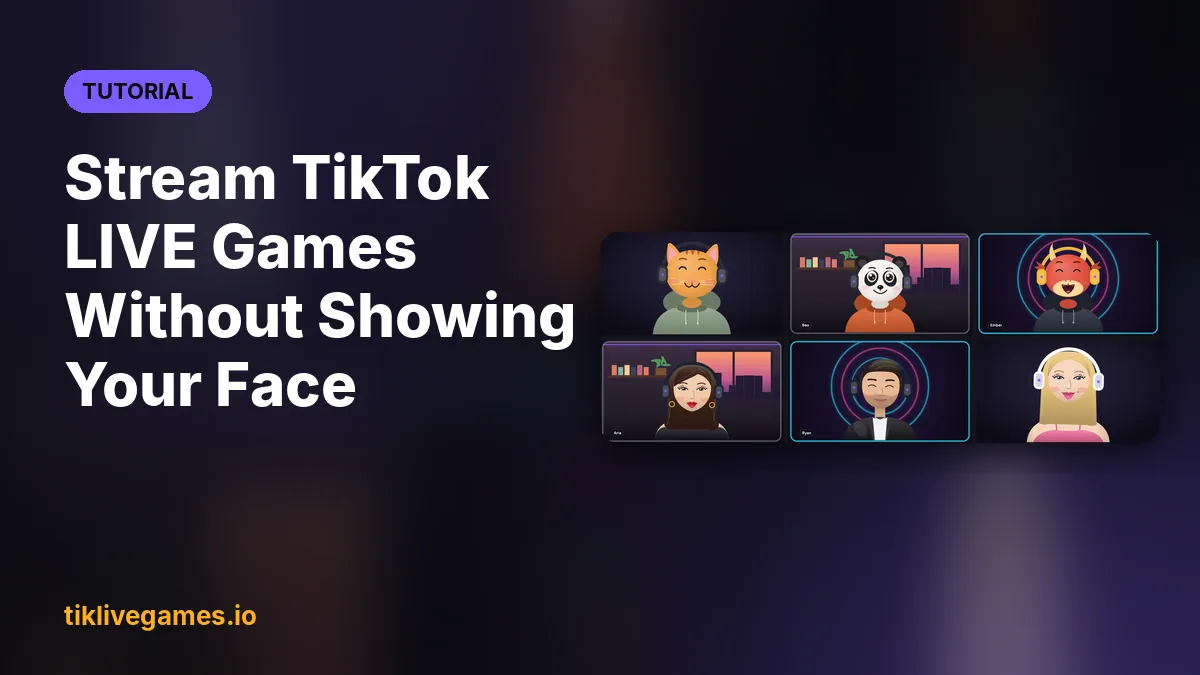
Not everyone wants to be on camera. With TikPilot you can play interactive games on your TikTok LIVE with the camera off: a talking avatar on your overlay moves its mouth with your voice, and Voicemod can change how you sound. This guide shows both, and why you still need to be there and talk to your viewers.
Step 1: Add a talking avatar
- Open TikPilot and go to the Overlay tab.
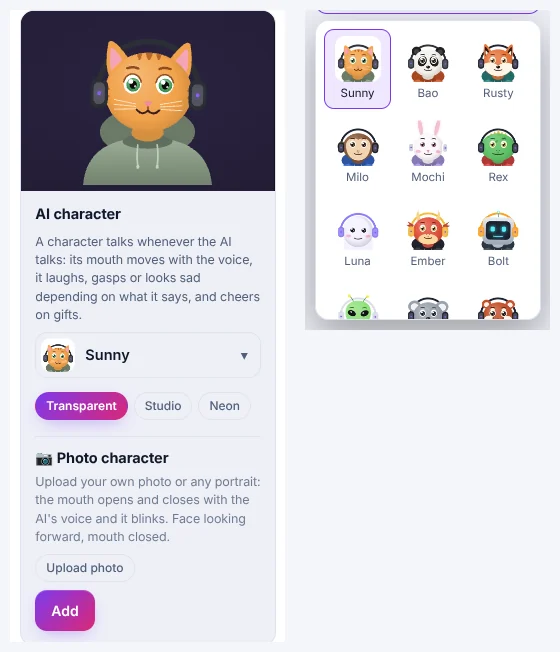
- In the Overlay gallery, find the AI character card.
- Choose a character and a background. To make your own photo talk instead, press Upload photo.
- Press Add. The character appears on your stream right away.
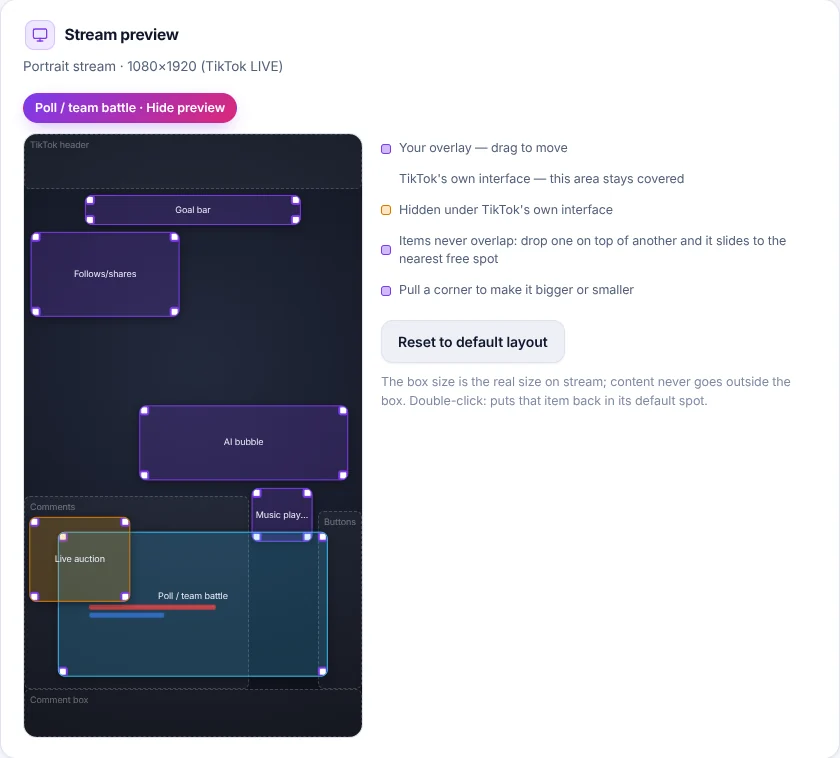
- Move and resize it in the Stream preview. The grey zones are TikTok's own interface; keep the character out of the yellow zones, where it would be hidden.
Step 2: Let the avatar talk with your voice
On the character card, under “Whose voice drives the character?”, choose what moves its mouth:
- My voice: the character talks with your voice. Its mouth moves with your microphone and it laughs when you laugh. Works in every language, uses no credits.
- Both: it uses the AI's voice while the AI co-host talks, and yours when the AI is quiet.
- AI's voice: only the AI co-host makes it talk.
For My voice and Both, the microphone has to be on in TikPilot. If it is off, the card tells you: "Microphone is off — turn it on in the Microphone setting."
Your voice stays on your computer. TikPilot only follows how loud you are, to open and close the mouth and to notice when you laugh. It doesn't turn your speech into text, uses no AI model and sends your voice nowhere.
Step 3: Put it on your stream
The avatar is part of TikPilot's overlay, so it appears in OBS or TikTok LIVE Studio wherever the rest of your overlay does. If you haven't added the overlay yet, the Start tab sets up OBS and TikTok LIVE Studio in one click; this guide shows how:
Step 4: Change your voice with Voicemod (optional)
TikPilot works with Voicemod, a separate voice changer app for Windows. Voicemod has to be running on the same computer.
- In TikPilot, open the Interaction tab (Pro and higher plans) and find the 🎙 Voicemod (voice changer) card.
- Switch on “Voicemod connection on”.
- Fill in Address, Port and the Voicemod API key. You get the key in Voicemod under Settings → Developer.
- Choose your Normal voice: the voice you go back to.
- Press Connect and fetch voices, then Test voice to hear it.
Now a gift can change your voice. In the Gifts tab, open a gift or a rule, go to Advanced settings → 🎙 Change voice (Voicemod), pick a voice and set after how many seconds your voice returns to normal. Viewers hear the gift's voice for a moment, then you sound like yourself again.
Want a changed voice for the whole stream? Pick that voice in Voicemod itself and use Voicemod's microphone as your mic in OBS or TikTok LIVE Studio.
Stay present: no camera is fine, silence is not
TikTok's LIVE Monetization Guidelines say that content "generated or operated primarily through automated systems, such as AI or other third-party tools, without meaningful creator presence, interaction, or facilitation" may not be eligible for monetization, and neither may content that is "largely passive or unattended". An avatar and a game don't replace you.
- Talk to your chat. The avatar only moves when you speak, so a silent stream shows a silent face.
- Reply to comments and greet viewers by name.
- React to what happens in the game and thank gifters yourself.
- Don't leave a game running on its own. If you have to step away, pause the LIVE.
These tips don't guarantee anything: only TikTok decides about restrictions and monetization. Read TikTok's own rules:
Related guides
Get TikPilot and give your LIVE a face that talks with your voice. Get TikPilot
Frequently Asked Questions
Do I need a camera to stream TikPilot games?
No. A talking avatar on your overlay can stand in for your face: with My voice its mouth moves with your microphone. You still need to talk to your viewers.
Does the avatar use credits when it talks with my voice?
No. With My voice it uses no credits and works in every language. Your voice is analysed on your computer only.
Do I need Voicemod for the talking avatar?
No. The avatar works with your normal microphone. You only need Voicemod if you want to change how your voice sounds.