
TikTool Overlay Gallery: Add Animated Overlays to TikTok LIVE in One Click
TikLiveGames Team · · 6 min read
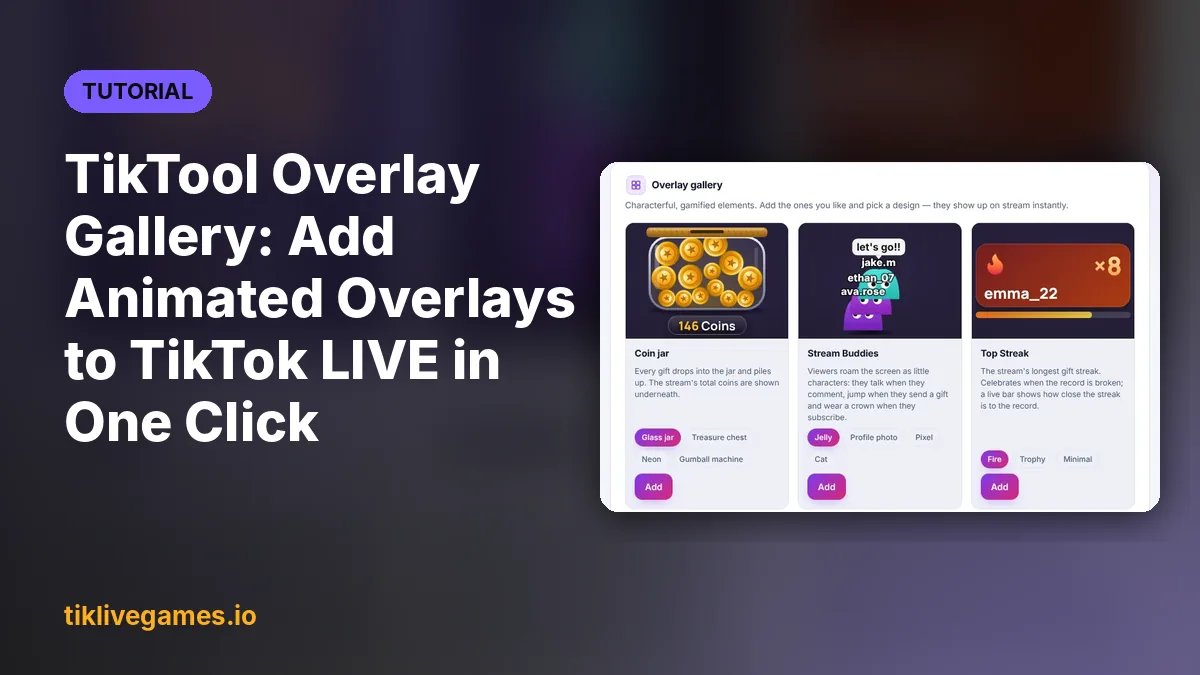
The Overlay Gallery is a set of animated, gift-driven overlays you can add to your TikTok LIVE with one click: a coin jar that fills with every gift, little characters for your viewers, a gift race, an aquarium and more. Each one has a live preview and several designs, and it appears on stream the moment you press Add.
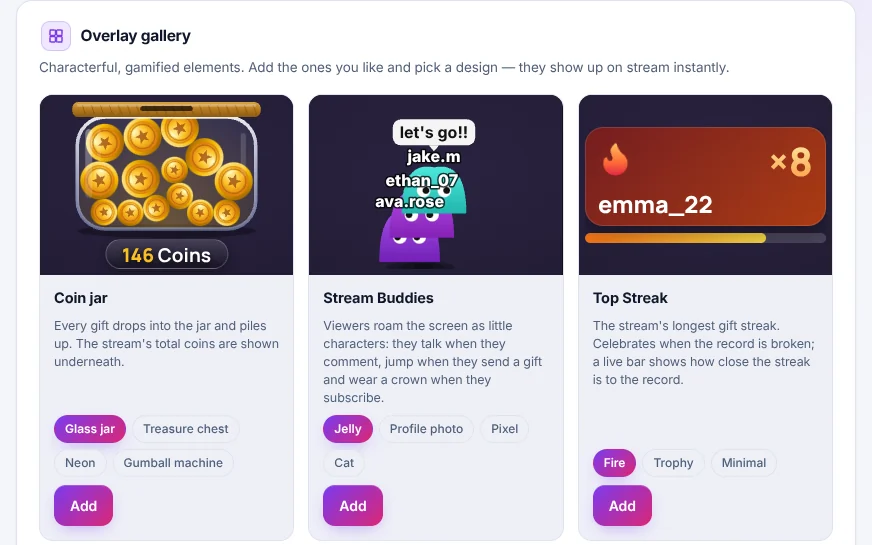
What is in the Overlay Gallery
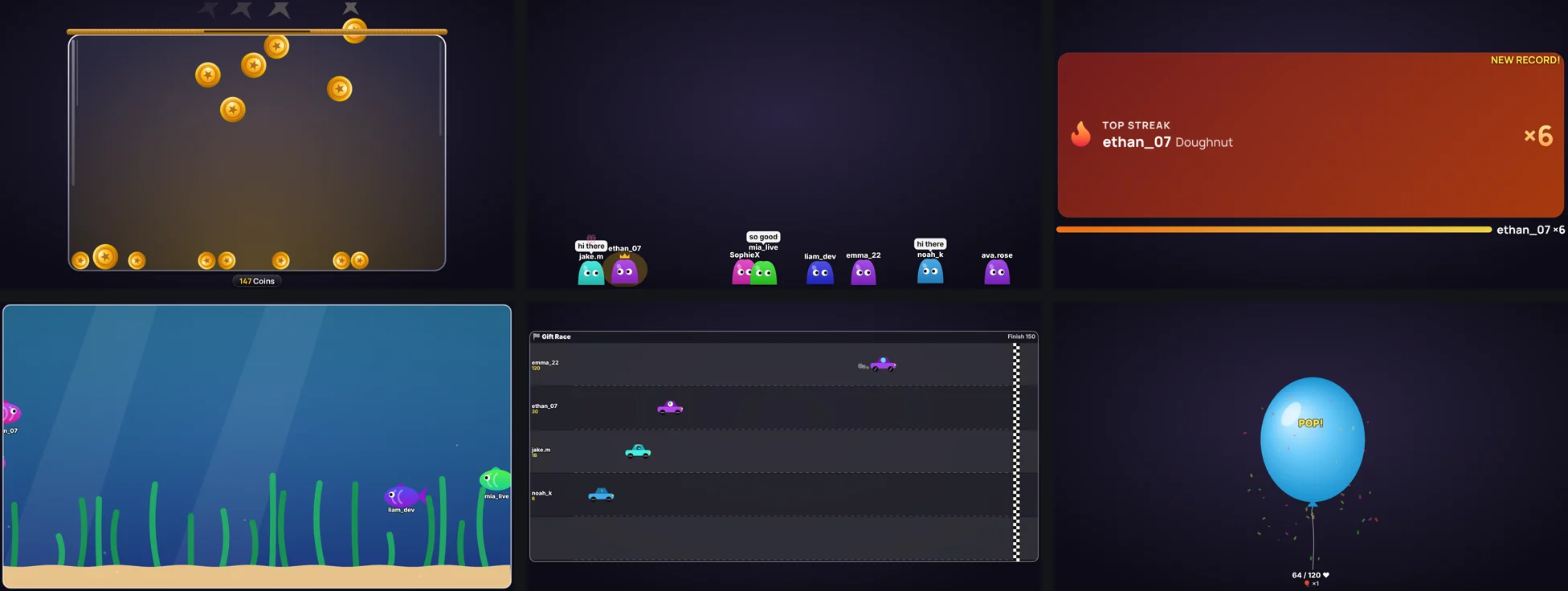
- Coin jar — every gift drops into the jar and piles up; the stream's total coins are shown underneath. Designs: glass jar, treasure chest, neon, gumball machine.
- Stream Buddies — viewers roam the screen as little characters: they talk when they comment, jump when they send a gift and wear a crown when they subscribe.
- Top Streak — the stream's longest gift streak, with a celebration when the record is broken.
- Live auction — a timed auction for a prize where gifts are bids and the highest bid wins.
- Gift aquarium — every gifter drops a fish into the tank; more gifts make a bigger fish, and the biggest wears a crown.
- Like balloon — likes inflate the balloon until it pops with confetti, then the next one arrives.
- Gift race — each gifter moves along their own lane toward the finish; the first to arrive wins the round.
- AI character — a character that talks with your AI co-host's voice, with its mouth and face moving as it speaks.
Add an overlay in one click
- Open TikTool and go to the Overlay tab.
- Scroll to the Overlay gallery. Every card plays a live preview, so you can see it move before you add it.
- Pick a design under the card (for example Glass jar or Treasure chest).
- Press Add. The card gets a Live badge and the overlay appears on your stream right away. Press Remove to take it off.
Place and resize it
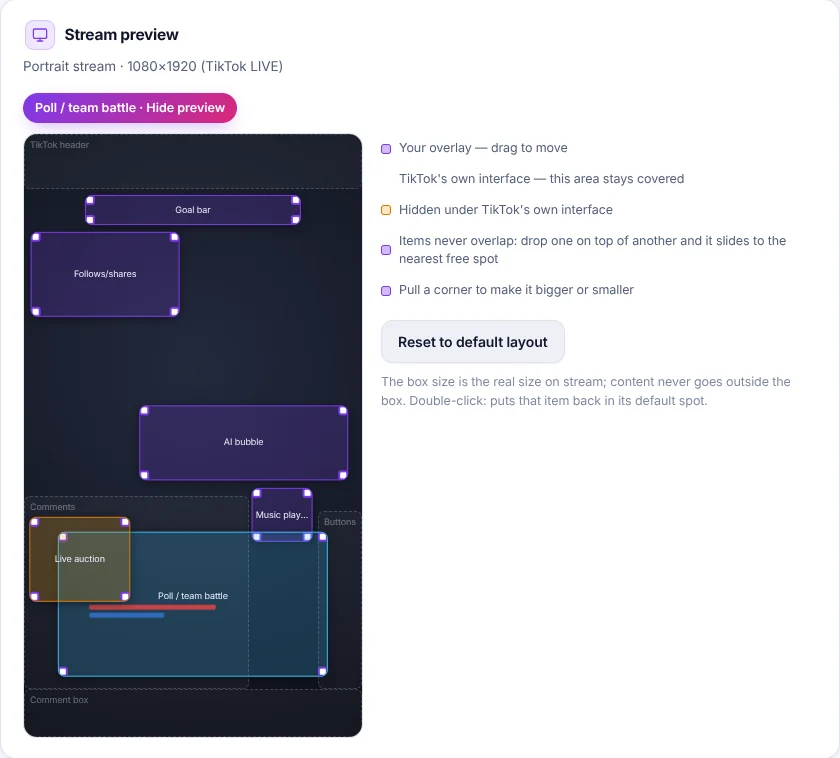
Above the gallery, the stream preview shows your whole TikTok LIVE screen with every overlay as a box. Drag a box to move it and pull a corner to make it bigger or smaller. Boxes never overlap, and the areas covered by TikTok's own interface are marked, so nothing ends up hidden under the comments or buttons. Double-click a box to put it back in its default spot.
Easy setup: OBS and TikTok LIVE Studio in one click
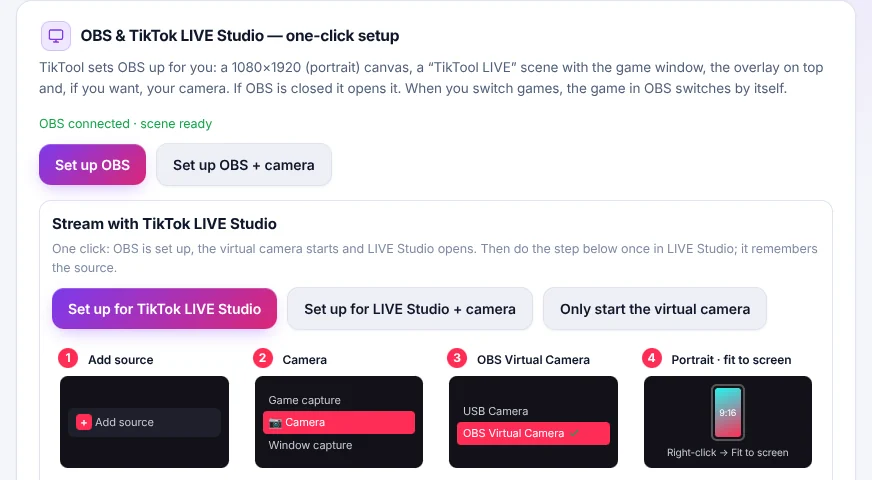
You do not have to set up any browser sources by hand. In the Start tab, TikTool sets everything up for you:
- Set up OBS — TikTool opens OBS if it is closed, makes the canvas 1080×1920 (portrait) and builds a “TikTool LIVE” scene with your game window and the overlay on top. Set up OBS + camera adds your webcam too.
- Set up for TikTok LIVE Studio — OBS is set up, its virtual camera starts and TikTok LIVE Studio opens. In LIVE Studio you do one step once: Add source → Camera → OBS Virtual Camera, then right-click → Fit to screen. LIVE Studio remembers it.
- When you switch games in TikTool, the game in OBS switches by itself.
Every overlay you add from the gallery is part of that same overlay, so after this one-time setup new overlays appear on stream without touching OBS or LIVE Studio again.
Tips
- Start with two or three overlays — a coin jar and Stream Buddies are a great pair.
- Pick designs that match your stream's colors.
- Tell viewers what their gifts do: “every gift drops a coin in the jar”.
- Keep the bottom of the screen free for TikTok's comments; the preview shows where they are.
The Overlay Gallery is included in the TikTool Pro, Premium and Ultra plans.
Add animated overlays to your TikTok LIVE. Get TikTool