
How to Play Interactive TikTok LIVE Games on Android
TikLiveGames Team · · 6 min read
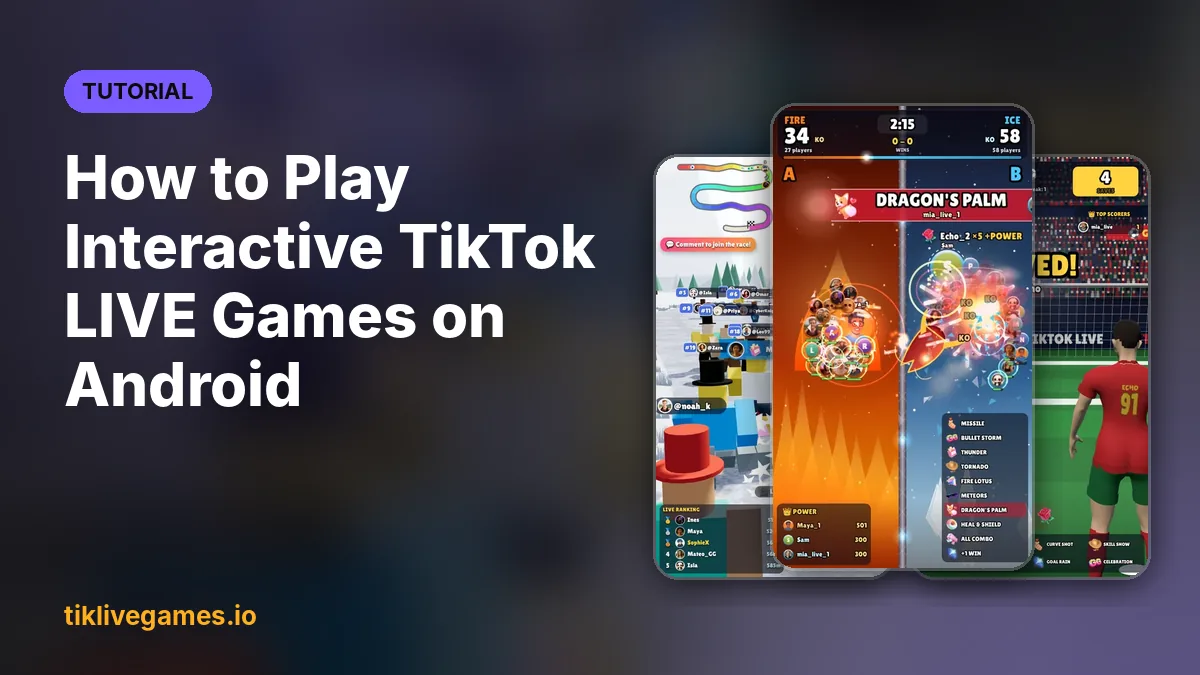
You don't need a PC to run interactive games on your TikTok LIVE. TikPilot for Android plays the TikPilot games you own right on your phone, connected to your LIVE, with the overlay and the AI co-host. This guide shows the setup, which games suit a phone, and how to stay within TikTok's rules.
What you need
- An Android phone or tablet with Android 7.0 or newer
- A TikTok account that can go LIVE, with a public profile
- A TikPilot account: the email you bought a plan or a game with
- A stable internet connection: games only start and stay open online
Step by step
- Buy a TikPilot plan or a game, then download TikPilot for Android (APK) from My Library on tiklivegames.io and install it. Allow installs from this source when Android asks. Play Protect may warn you because the app is not on Google Play.
- Open TikPilot and sign in with the email you bought with.
- Start your LIVE in TikTok first. Then open the Live tab, type your TikTok username and tap Connect. Gifts, comments and likes now reach your games and overlay. Connecting needs an active plan or a game license.
- Open the Games tab, tap Download on a game you own, then Play. The game opens full screen in the app. Low graphics quality runs smoothest on phones; you can change it in the app and inside each game.
- Show the game to your viewers with TikTok's mobile screen share (in TikTok: + → LIVE → Mobile gaming), or with a server URL and stream key from TikTok LIVE Producer in the Go live tab, if your account has one.
Turn on the floating overlay to keep gift alerts, the goal bar and chat on screen over any app while you share your screen. The overlay is in Standard and higher plans.
Which games work well on a phone
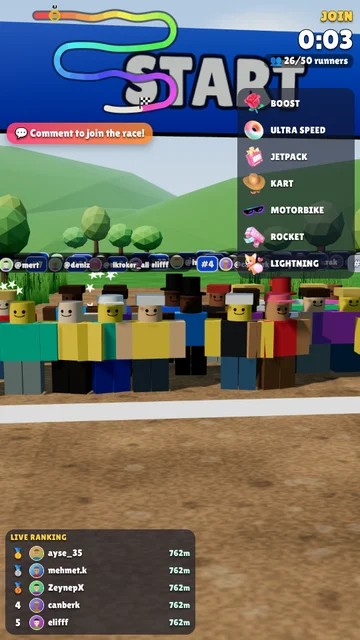
A phone streams in portrait, so pick games made for a vertical 9:16 screen. Games where viewers join with a comment and move the action with likes and gifts work best, because you don't need a keyboard: races, team battles and gift reaction games.
- Crowd Race: viewers race as 3D runners
- Team Clash: team battle by comment
- Penalty: a football shootout
- Dog Chef: a cute gift reaction game
Games with keyboard controls for the streamer, such as two-player duels on one keyboard, are better played on a PC.
Tips for a smooth LIVE from your phone
- Use stable Wi-Fi instead of mobile data when you can.
- Keep the phone on a charger: the game, the LIVE and screen sharing use a lot of battery.
- Turn on Do Not Disturb so calls and notifications don't show up on your LIVE.
- Set TikPilot's battery usage to Unrestricted so Android doesn't stop it in the background.
- Try the test events on the Live tab before you go LIVE.
Stay within TikTok's rules
Gifts in our games are always optional: viewers can join with a comment, and the games never ask for gifts. On a phone it is easy to stay with your viewers: talk to them, react to what happens, and pause the LIVE if you have to step away.
Related guides
- TikPilot for Android: setup guide
- Our TikPilot Games Are Built Around TikTok LIVE Rules
- TikTok LIVE Gift Games: What TikTok's Rules Say
- How to Play Interactive Games on TikTok LIVE: Step-by-Step Setup (2026)
Get TikPilot, then download the Android app from My Library. Get TikPilot
Frequently Asked Questions
Is TikPilot for Android on Google Play?
No. After you buy a plan or a game, you download the APK from My Library on tiklivegames.io and install it. Play Protect may warn you because the app is not on Google Play.
Do I have to buy my games again for Android?
No. Sign in with the same email: the games you own and your plan work on the phone too. The phone may count toward your plan's device limit.
Can I use the overlay on Android?
Yes, with the Standard plan and up: on top of the game, floating over any app, or shared on Wi-Fi to OBS or LIVE Studio on a PC.
Which Android version do I need?
Android 7.0 or newer.