
How to Do a TikTok Game Stream with LIVE Studio and TikPilot
TikLiveGames Team · · 10 min read
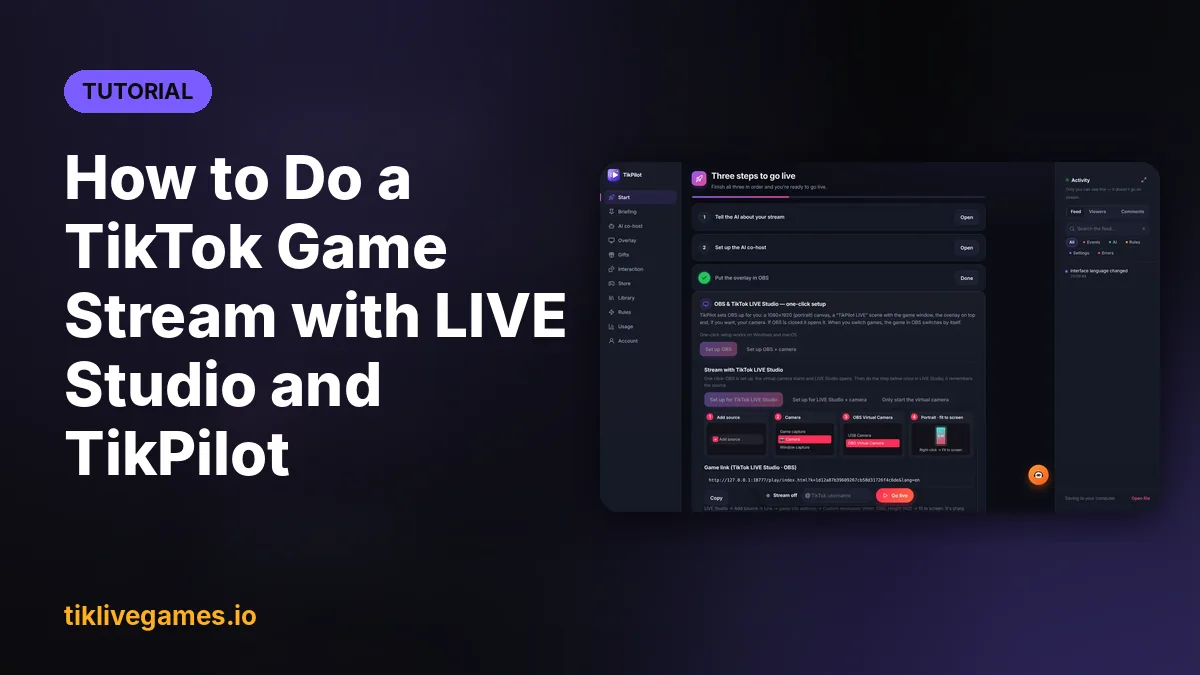
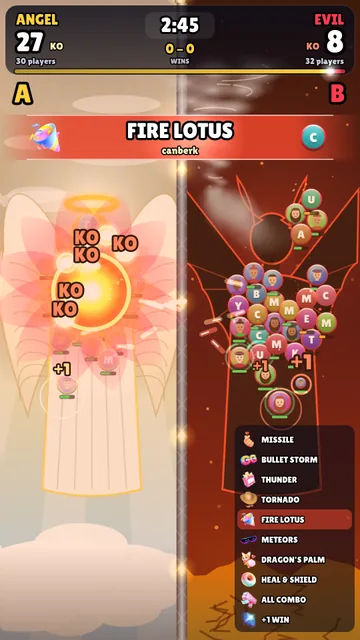
A TikTok game stream is a LIVE where your viewers play: a Rose boosts their racer, a comment puts them on a team, a Galaxy fires the big attack. This guide takes you from nothing to your first interactive game stream with TikTok LIVE Studio and TikPilot, the desktop app that runs every game from tiklivegames.io and connects it to your LIVE. It takes about 15 minutes the first time.
What you need
- A Windows 10/11 PC or a Mac (macOS 10.13 or newer)
- A TikTok account that can go LIVE, with a public profile
- TikTok LIVE Studio (free). OBS Studio (free) is optional but makes the one-click setup possible
- TikPilot and a game: a single game, or a TikPilot plan that includes every game
Step 1: Install TikPilot and sign in
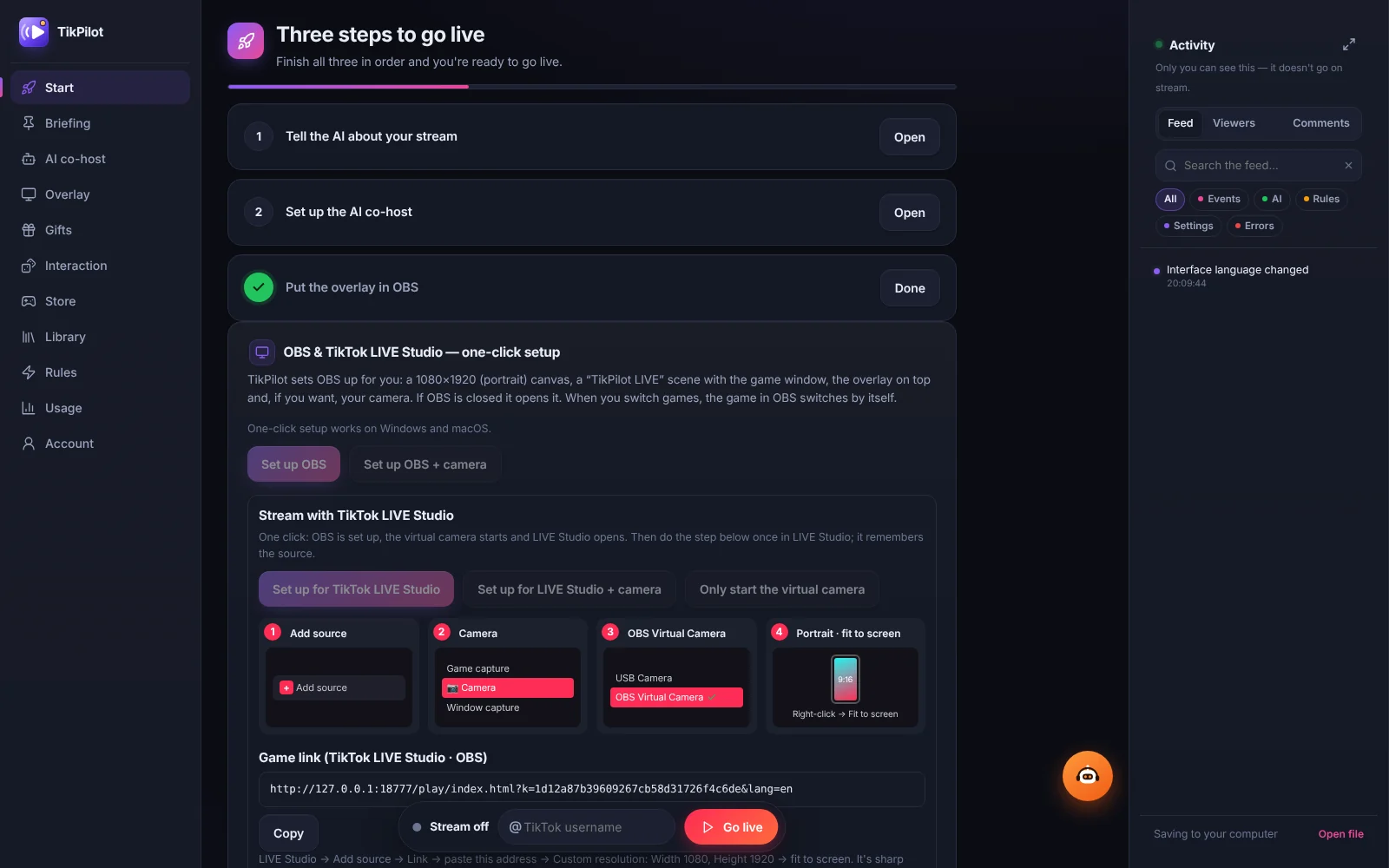
Download TikPilot for Windows or macOS from the TikPilot page and install it. Sign in with the email you used for your purchase. TikPilot's control panel has a menu on the left: Start, Briefing, AI co-host, Overlay, Gifts, Interaction, Store, Library, Rules, Usage and Account.
Step 2: Connect TikPilot to your TikTok LIVE
Type your TikTok username without the @ in the Go live bar at the bottom of TikPilot and press Go live. TikPilot connects as soon as your LIVE is on. From then on every gift, comment, like, follow and share reaches the game and the overlay, with the viewer's name and photo. You never connect a game to TikTok yourself: every open game uses TikPilot's connection.
Step 3: Find a game in the Store
Open the Store tab. At the top you see featured games, then shelves with New releases, Recently updated and Your games. Below them, All games lists the whole catalog.
- Search: type a name or a word like race, zombie or football in Search games…
- Filters: pick a category such as Racing, Team battle, Sports, Action, 2 Player, Horror or Fun & reactions; the number shows how many games it has
- Pages: the list is split into pages; use the arrows or the page numbers at the top and the bottom
- Game page: click a game to see its trailer, screenshots, how it plays, which gift does what and its latest updates
Games you own are marked in the Store. To get a game, click Subscribe on the website on its page: it opens the game on tiklivegames.io, and after payment TikPilot unlocks it by itself (if not, press I have a license — check again). With a plan that includes every game, every game in the Store is already yours.
Step 4: Download the game and press Play
Open the Library tab (My games). Press Download the first time; when a new version comes out, the card shows Update. Then press Play. The game opens in its own portrait (9:16) window on its menu screen, where you set it up before the round starts.
Step 5: Add the game to TikTok LIVE Studio
There are three ways. Pick one; you only do it once, because LIVE Studio remembers its sources.
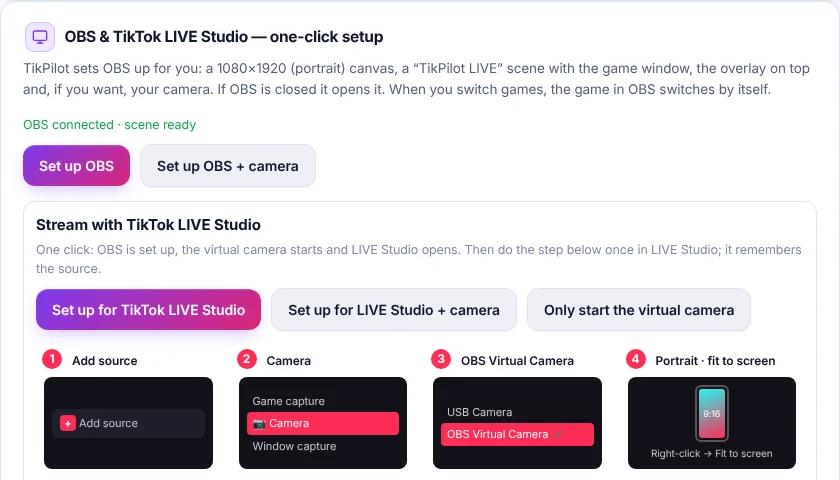
- One click (recommended): on the Start tab press Set up for TikTok LIVE Studio. TikPilot sets up OBS, starts the OBS virtual camera and opens LIVE Studio. In LIVE Studio choose Add source → Camera → OBS Virtual Camera, portrait mode, fit to screen. The game, the overlay and your camera arrive as one sharp source.
- Game link, without OBS: copy the Game link from the Start tab. In LIVE Studio choose Add source → Link, paste it and set a custom resolution of 1080 × 1920, then fit it to the screen. The link stays the same when you change games.
- Window capture: in LIVE Studio add a window capture and pick the game window. It is listed as TikTool Game, the app's former name, which stays so existing captures keep working. Do not pick the TikPilot Controls window.
Using OBS instead? Press Set up OBS on the Start tab. TikPilot sets a portrait 1080 × 1920 canvas and builds a TikPilot LIVE scene with the game window, the overlay on top and, if you want, your camera. Your own scenes and your stream key are not touched.
Step 6: Decide which gift does what
Every game's menu has a Which gift does what? list. Click a gift to open the gift picker: it lists the full TikTok gift catalog with pictures and coin values, and you can search it. Choose — off — to turn an action off. Keep cheap gifts like the Rose on small actions and expensive ones like the Galaxy on the big moments. The game remembers your choices, and Profiles save a whole setup under a name.
In the Screen card of the menu you pick the format (Vertical, Horizontal, Square or TikTok LIVE under the camera) and where the gift guide shows: in the game, on the TikPilot overlay, or both. Not sure what a gift is worth? The TikTok coin calculator shows each gift's value in dollars.
Step 7: Control the overlay around the game
The game is the main show; TikPilot's overlay adds the frame around it. Add the overlay link once (the one-click setup already does) and change everything from the panel while you are live.
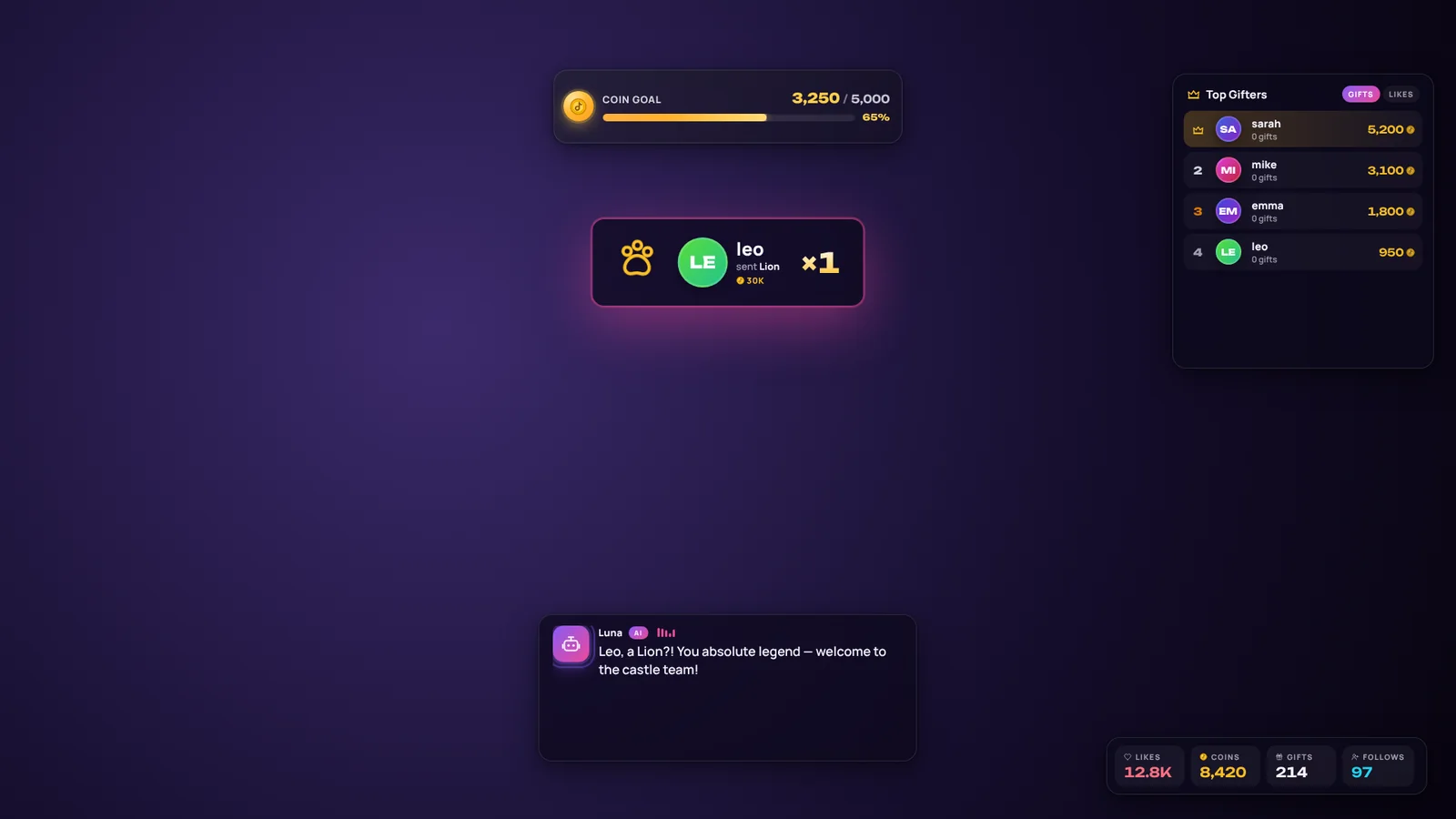
- Overlay tab: gift alerts with the sender's name, a goal bar for coins, likes, follows or viewers, follow and share alerts and a leaderboard. Move and resize every box in the layout
- Gifts tab: click a gift to give it its own sound, picture, on-screen text or read-aloud message
- Rules tab: gift rules that play a sound, image or video, press a key or switch an OBS scene
- Game gift guide: if the game's guide is set to the overlay, it becomes its own box in the overlay layout
- Try it before you go live: the Start tab sends fake gifts and follows so you can see the overlay and your rules
Step 8: Test with keyboard gifts
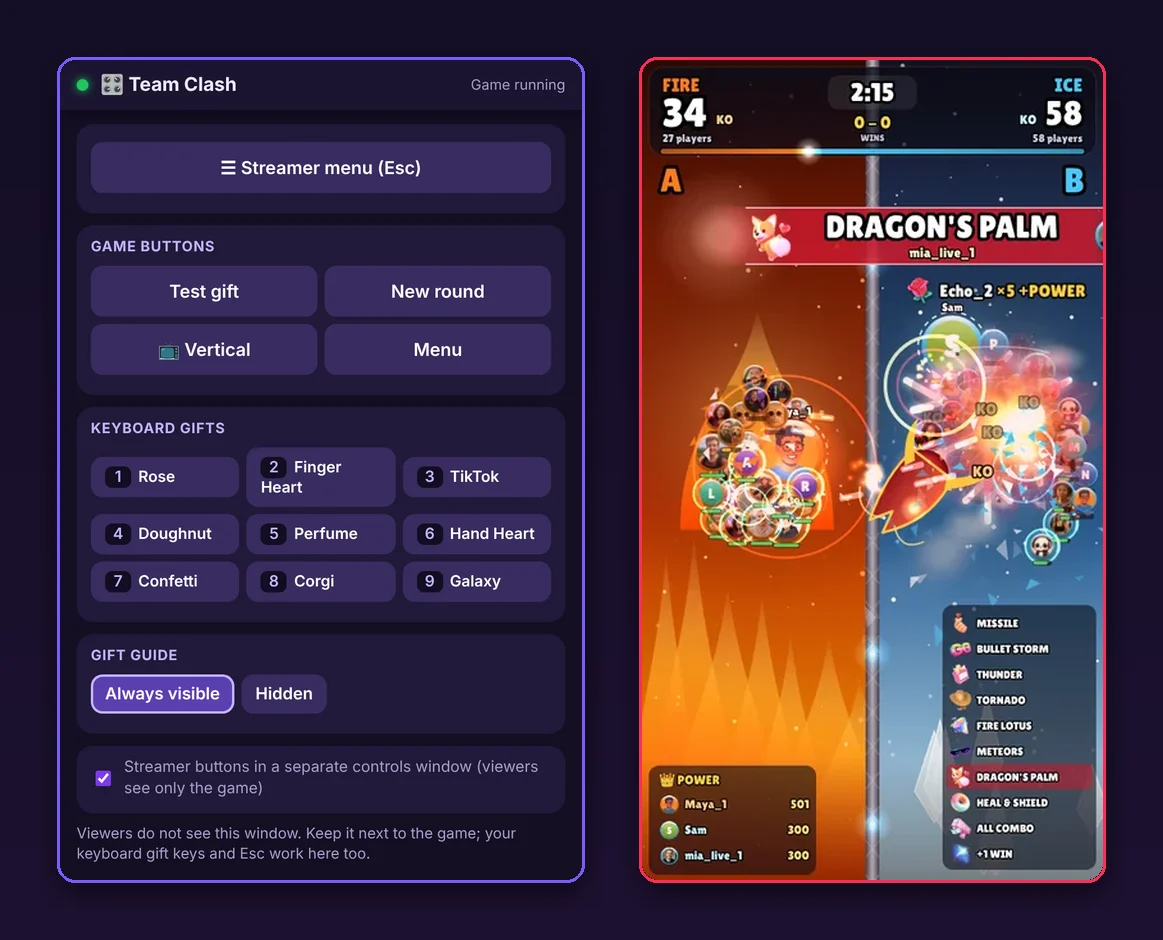
You can send gifts from your keyboard to check that everything works. In the game menu, the Keyboard card turns on Send gifts with the keyboard during the game. Keys 1 to 9 start as Rose, Finger Heart, TikTok, Doughnut, Perfume, Hand Heart, Confetti, Corgi and Galaxy; Use this game's gifts puts the game's own gifts on the number keys. Press a key during the game and the gift arrives as if a viewer sent it. The Test gift button in the game sends a test gift too.
Step 9: Keep the buttons off your stream with the Controls window
Press Controls window in the game menu or on the game's card in the Library. The streamer buttons (Play, the Esc menu, Test gift, New round, format and keyboard gifts) move to a separate window that only you see, so the stream shows only the game.
Step 10: Add the AI co-host (optional)
TikPilot's AI co-host talks on your LIVE: it greets viewers by name, thanks gifts and calls the game like a commentator. TikPilot games tell the AI what is happening themselves, so it knows who is leading without reading the screen. With push-to-talk you can also say "start the game", "restart", "send a test gift" or "hide the gift guide". Write a short briefing first so the AI knows your game and your style. The AI is part of Pro, Premium and Ultra; Standard has no AI, and every game plays without it.
Step 11: Go live
- Start your LIVE in TikTok LIVE Studio (or OBS)
- Check that TikPilot shows it is connected to your LIVE
- Press Play in the game, or in the Controls window, to start the first round
- Say the rules out loud and keep the gift guide on: "Rose = boost, Galaxy = rocket"
- Call out the leaders and top gifters, then start a new round
Which plan do you need?
- A single game: from $13.99 a month. It includes TikPilot Standard (overlays and gift rules, no AI) while the game subscription runs
- Pro, $24.99 a month: every interactive game, at least 2 new games every week, and the AI co-host that speaks on gifts, follows and shares (500 AI credits, 1 device)
- Premium, $35.99 a month: every game and the new ones, every AI reply spoken, live voice chat, 2,000 AI credits, 2 devices
- Ultra, $69.99 a month: every game and the new ones, 8,500 AI credits, 3 devices
Related guides
- How to control your stream with the TikPilot Controls window
- New TikTok LIVE games every week
- How Streamers Set Up Interactive TikTok LIVE Streams
- AI Co-Host Briefing: Tell the AI Who You Are and How You Stream
- TikTok coin calculator
- TikPilot plans and prices
- All TikTok LIVE games
TikTok and TikTok LIVE Studio are trademarks of their owner. TikPilot and TikLive Games are not affiliated with TikTok.
Pick your first game: TikPilot comes with it. Browse games
Frequently Asked Questions
Can I stream TikPilot games with TikTok LIVE Studio only, without OBS?
Yes. Copy the Game link from TikPilot's Start tab and add it in LIVE Studio as a Link source at 1080 × 1920, or add the game window as a window capture. The one-click setup uses the OBS virtual camera, so it needs OBS Studio installed.
Which window do I capture?
The game window. It is listed as TikTool Game, the app's former name. Never capture the TikPilot Controls window: it holds your streamer buttons and is meant only for you.
How do I test gifts before going live?
Turn on keyboard gifts in the game menu and press 1 to 9, or press Test gift. On TikPilot's Start tab you can also send fake gifts and follows to test the overlay and your rules.
How many games are included and how often do new ones come?
Pro, Premium and Ultra include every interactive game on tiklivegames.io, and at least 2 new games arrive every week at no extra cost.
Do I need the AI co-host?
No. Every game plays without it. The AI co-host is part of Pro, Premium and Ultra and adds a voice that greets viewers, thanks gifts and calls the game.