
How to Control Your Stream with the TikPilot Controls Window
TikLiveGames Team · · 6 min read
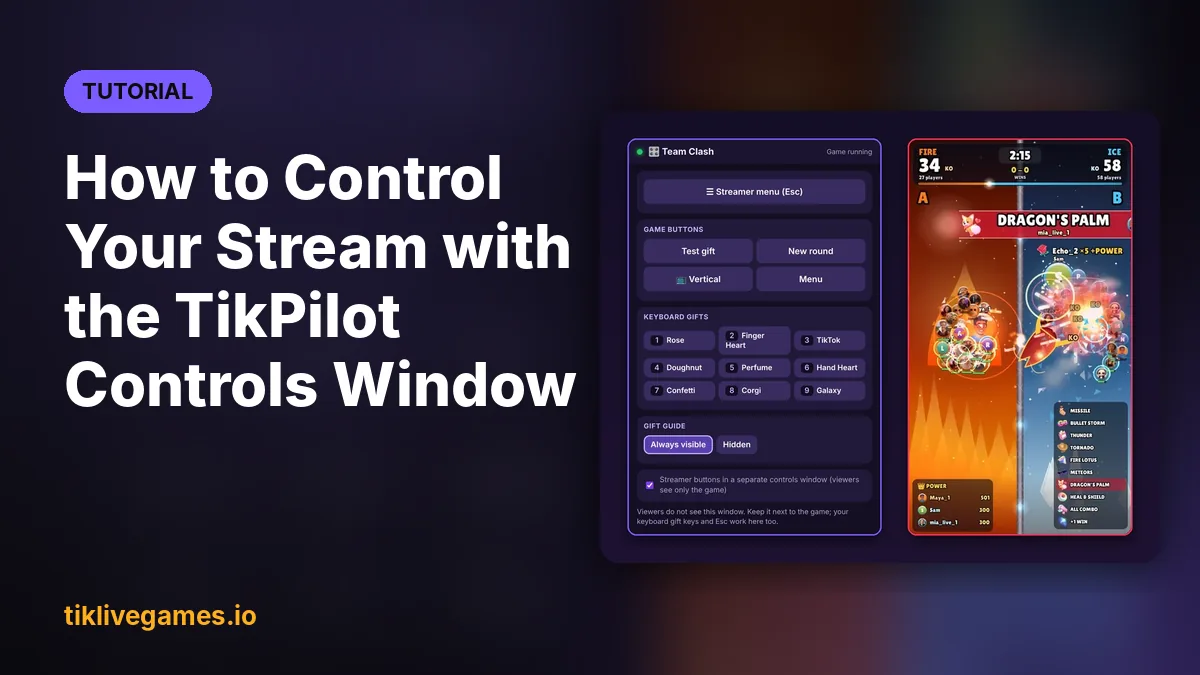
Every TikPilot game has buttons for you, the streamer: Test gift, New round, the menu, the screen format. Your viewers do not need to see them. The Controls window moves all of them into a separate window next to the game. You capture only the game window in TikTok LIVE Studio or OBS, so your stream shows only the game, and you still have every button at hand.
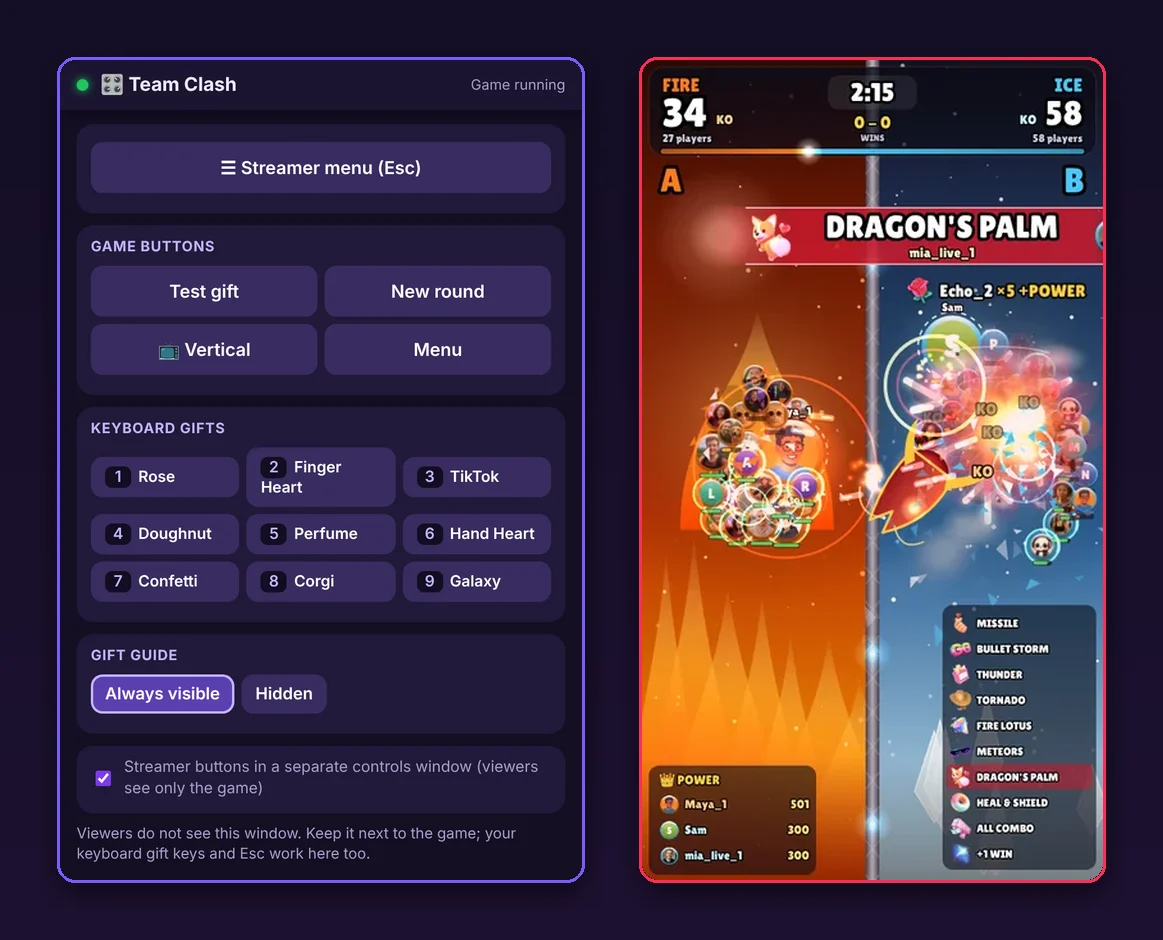
What the Controls window is
It is a small window titled TikPilot Controls that talks to the game while it runs. Every button you press there presses the same button in the game. Viewers do not see this window, so you can click, test and change settings during your LIVE without anything showing up on stream.
How to open it
- In the game: press Controls window in the game's menu, next to Play
- In TikPilot: open Library (My games) and press Controls window on the game's card
TikPilot opens it to the left of the game window. The green dot at the top means it is connected, and the status shows Game running or In the menu. In the game menu, Streamer buttons in a separate controls window (viewers see only the game) is on by default.
What is in it
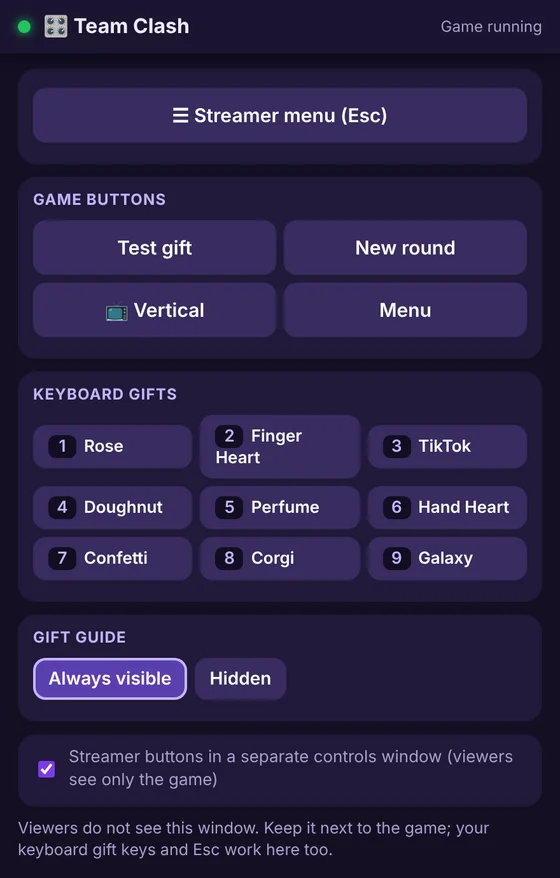
- Play and Continue: ▶ Play starts a round from the menu; while the Esc menu is open, ▶ Continue goes back to the running game
- Streamer menu (Esc): opens the game's settings in the Controls window while the game keeps running on stream
- Game buttons: the game's own buttons with the same names, such as Test gift, Restart or New round, the 📺 screen format and Menu
- The game's settings: while the menu is open, its settings (gifts, teams, screen) appear in the Controls window, so you can set the game up even if you only see it in the LIVE Studio preview
- Streamer panel: games with their own streamer panel show it here, with the same buttons, lists and sliders
- Keyboard gifts: keys 1 to 9 with the gift each one sends; click one or press the key
- Gift guide: Always visible or Hidden, so you decide when viewers see which gift does what
Your keyboard works in the Controls window too: Esc opens the streamer menu, and the keyboard gift keys send their gifts.
The two-window setup
- Press Play on the game in TikPilot. The game opens in its portrait window.
- Open the Controls window. It appears on the left, the game stays on the right.
- Add only the game window to TikTok LIVE Studio or OBS (or use TikPilot's one-click setup or the Game link).
- Go live and use the Controls window for everything: test gifts, new rounds, the menu and the gift guide.
With two screens, put the Controls window on the second one. With one screen, keep it narrow next to the game; it scrolls if the window is short.
What happens if you close it
Nothing breaks. As soon as the Controls window closes, the buttons come back in the game window, small and faded so they hardly show on stream, and fully visible when you move the mouse over them. Esc still opens the menu in the game. Open the Controls window again whenever you want and the buttons move back.
Troubleshooting
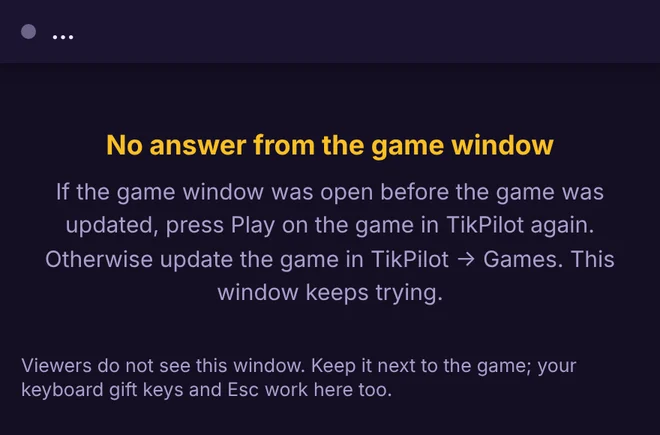
- Waiting for the game…: open the game in TikPilot with Play. The Controls window connects by itself
- No answer from the game window: the game window was probably open from before an update. Press Play on the game in TikPilot again; if that does not help, update the game in the Library. The window keeps trying
- Update the game to use the controls window: the installed game version is too old. Press Update in the Library
- A Chrome sharing bar on the window: open the Controls window from TikPilot's Library instead; TikPilot opens it in your own browser profile without that bar
- Buttons still visible on stream: check that you captured the game window and not the Controls window, and that the option for separate controls is on in the game menu
On Android
The Controls window is part of TikPilot for Windows and Mac. When a game runs on an Android device, there is no second window, so the streamer buttons stay inside the game.
Related guides
- How to Do a TikTok Game Stream with LIVE Studio and TikPilot
- How Streamers Set Up Interactive TikTok LIVE Streams
- TikPilot for TikTok LIVE
- All TikTok LIVE games
Every TikPilot game has the Controls window. Browse games
Frequently Asked Questions
Do viewers see the Controls window?
No. Only the game window goes to your stream. The Controls window is a separate window for you, so do not add it to TikTok LIVE Studio or OBS.
How do I open the Controls window?
Press Controls window in the game's menu, or in TikPilot open Library (My games) and press Controls window on the game's card.
What happens if I close it during a LIVE?
The game keeps running. Small, faded buttons come back in the game window right away, and Esc still opens the menu.
Why does it say Waiting for the game?
The game is not open yet, or the game window was opened before an update. Press Play on the game in TikPilot again, or update the game in the Library.