
Show Your Game's Gifts in a TikTok LIVE Goal
TikLiveGames Team · · 5 min read
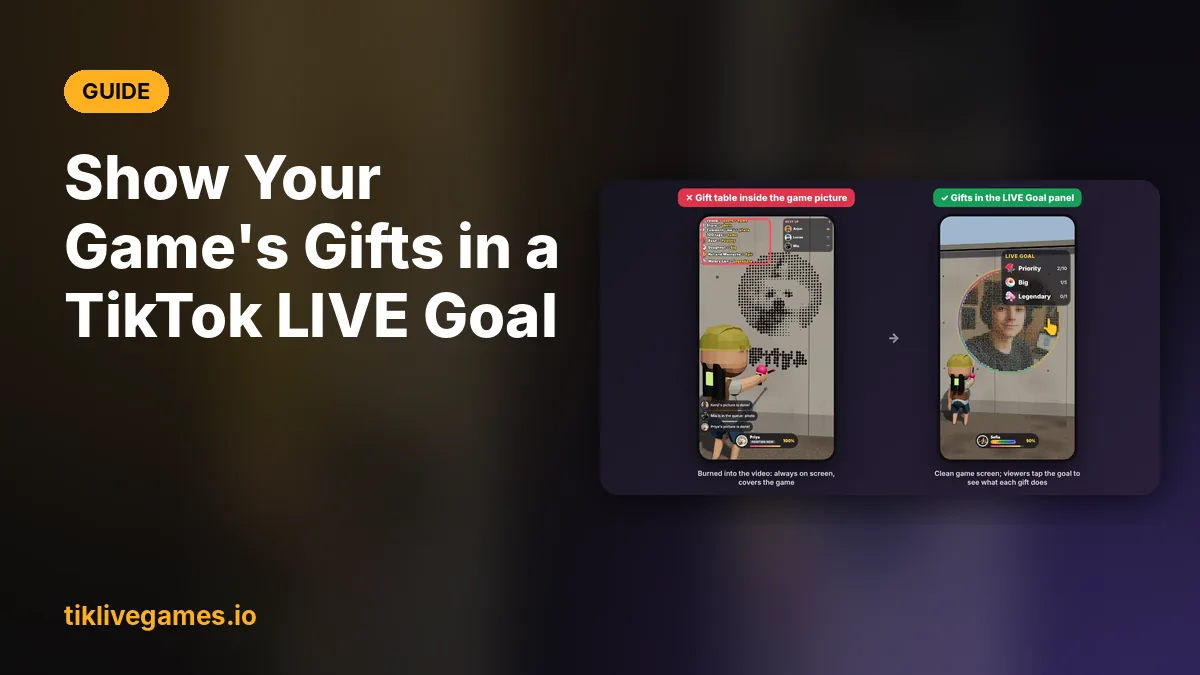
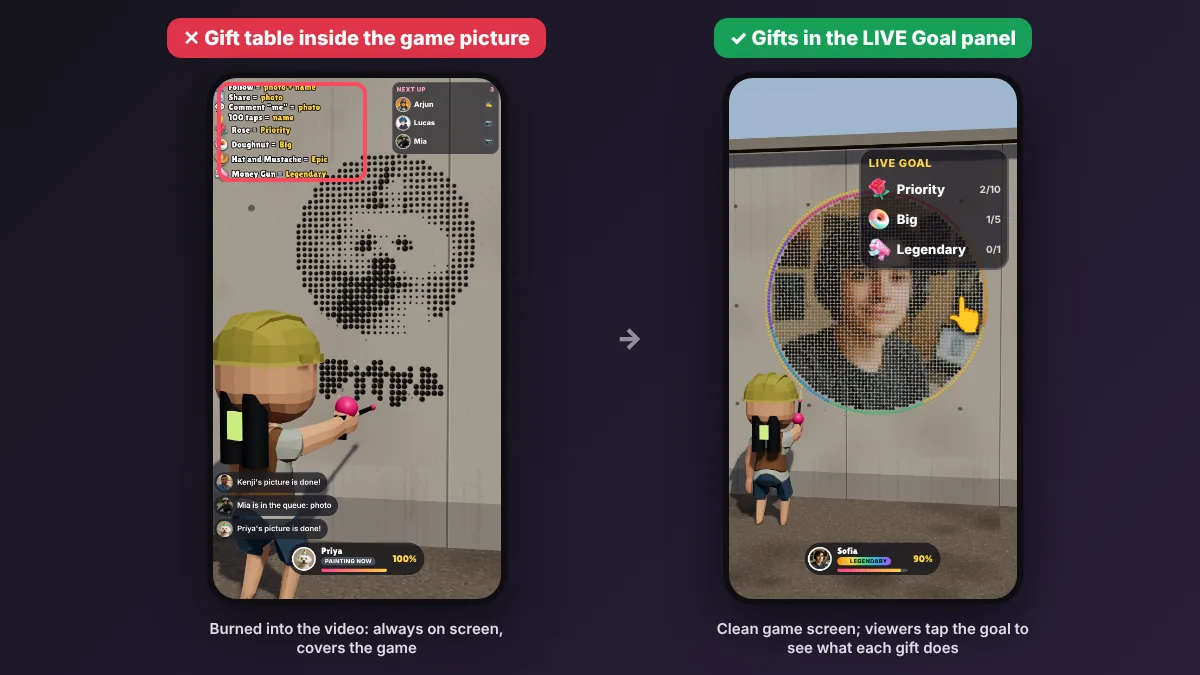
In a gift game every gift does something: a Rose jumps the queue, a Doughnut gives a bigger portrait, a Money Gun a legendary one. Viewers need to know that, so most games draw a gift table inside the game picture. There is a cleaner way: put the same gifts into TikTok's own LIVE Goal. The goal sits in TikTok's interface at the top right of your LIVE, viewers tap it to see which gift does what, and your game screen stays free.
Why the LIVE Goal is better than a table in the game
- It is part of TikTok's interface, not of your video: the game picture stays clean and nothing covers the action.
- Viewers tap the goal whenever they want and see the gifts and your description, instead of waiting for a guide to appear.
- It is TikTok's own feature for showing gifts on a LIVE, so it is a lower-risk way to show gift actions than big gift texts inside the video.
- The counts update live, so everyone sees how the stream is going.
Why it carries less restriction risk
TikTok's LIVE rules are strict about how gifts are asked for: repeated, mechanical or pushy gift requests can limit a LIVE or its rewards. A gift table that is always on screen, especially with lines like "send a Rose", can look like that. The LIVE Goal is the tool TikTok made for this: your gifts appear in TikTok's own panel, worded the way TikTok expects, and the video shows only the game. It lowers the risk; it does not remove it. Only TikTok decides about restrictions, so stay with your stream and follow the LIVE rules.
What you need
- TikTok LIVE Studio (or the TikTok app) with gifts turned on for your account
- A TikPilot game, for example Spray Wall, Blade Arena or Team Clash
- A list of the gifts you use in the game and what each one does
Step by step
- In the game menu, choose the gift for each action. In Spray Wall, for example: Rose = Priority, Doughnut = Big portrait, Money Gun = Legendary portrait.
- In TikTok LIVE Studio, click LIVE Goal to open its pop-up. You can do this before you go live or during the LIVE.
- Pick the gifts: the same gifts as in the game, the most important ones first. A goal can hold up to 3 gifts. Set a quantity for each.
- Write the goal description so it says what the gifts do, for example: "Rose = Priority · Doughnut = Big portrait · Money Gun = Legendary".
- Turn on the sticker switch so the goal shows on your LIVE, then confirm.
- Hide the gift guide inside the game so the gifts are not shown twice: game menu → Sound & guide → Gift guide → Hidden.
- Go live and send a test gift from TikPilot's Controls window to check that the game reacts the way your goal says.
How to write the goal description
- Write it like a legend: "Rose = Priority". Don't write "send a Rose!" or "please send gifts".
- Keep it short: viewers read it on a phone.
- Use exactly the gifts the game uses. If the game has more than 3 gift actions, put the 3 most important in the goal and name the others in the description.
- Free actions belong there too: "Follow = your photo on the wall · 100 taps = your name".
- Set realistic quantities; the goal is there to explain, not to pressure.
Examples
Spray Wall: gifts Rose, Doughnut and Money Gun. Description: "Rose = priority picture · Doughnut = big portrait · Money Gun = legendary portrait · Follow = your photo and name on the wall".
Blade Arena: gifts Rose, Doughnut and Galaxy. Description: "Rose = throw a saw · Doughnut = lightning · Galaxy = blade storm · Tap the screen to enter".
Team Clash: gifts Finger Heart, Doughnut and Sunglasses. Description: "Type A or B to join your team · Finger Heart = missile · Doughnut = heal · Sunglasses = meteor".
Common mistakes
- The goal shows other gifts than the game uses: viewers send a gift and nothing happens.
- The gift guide stays on in the game as well: the same list twice, and the game picture is covered again.
- Begging in the description: "please send gifts" is the kind of wording TikTok's rules warn about.
- Changing the gifts in the game and forgetting to update the goal.
Related guides
- Our TikPilot Games Are Built Around TikTok LIVE Rules
- TikTok LIVE Gift Games: What TikTok's Rules Say
- Set a LIVE goal to welcome more Gifts (TikTok LIVE Studio help)
- All TikTok LIVE games
TikTok is a trademark of its owner. TikPilot and TikLive Games are not affiliated with TikTok.
Find a gift game for your stream. Browse games
Frequently Asked Questions
Can viewers see what each gift does in the LIVE Goal?
Yes. The goal shows in TikTok's interface at the top right of your LIVE, and viewers can tap it to see the gifts and your description.
How many gifts can a LIVE Goal hold?
Up to 3 gifts. Put the most important game gifts in the goal and name the rest in the description.
Does the LIVE Goal mean my LIVE won't be restricted?
No tool can promise that; only TikTok decides. Showing gifts in TikTok's own goal panel instead of a gift table inside the video carries less risk, and you still need to stay with your stream and follow the LIVE rules.
Should I keep the gift guide in the game?
You can hide it (game menu → Sound & guide → Gift guide → Hidden) so the gifts are not shown twice and the game picture stays clean.