
TikTok LIVE Studio: Download & Setup Guide (2026)
TikLiveGames Team · · 8 min read
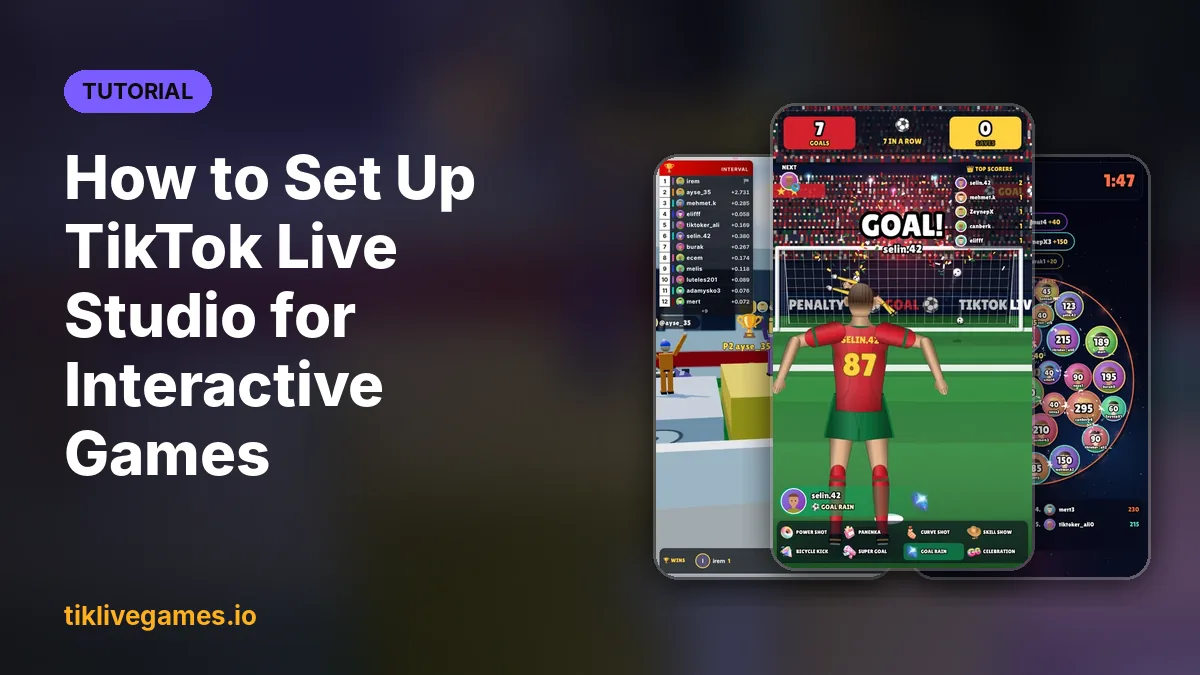
TikTok Live Studio is the official desktop streaming application from TikTok. It provides the best integration for interactive games and is recommended over third-party streaming software like OBS.
Downloading TikTok Live Studio
TikTok LIVE Studio is free. Download it only from TikTok's official page, tiktok.com/studio/download, choose the version for your computer, install it and log in with your TikTok account.
Initial Configuration
- Log in with your TikTok account
- Grant camera and microphone permissions
- Set your output resolution to 1080x1920 (Portrait mode)
- Configure your audio settings
- Test your stream preview
Adding Your Interactive Game
Start the game in TikPilot with Play, then press Copy next to Game link on the Start tab. In TikTok Live Studio click "Add source", choose "Link" and paste it. Set a custom resolution for the game's format (portrait 1080 × 1920, landscape 1920 × 1080) and fit it to the screen. The link stays the same when you change games.
Don't use Window Capture for the game: it is less sharp, and TikTok can treat a captured window as re-streamed, unoriginal content.
Optimal Stream Settings
- Resolution: 1080x1920 (Portrait) or 1920x1080 (Landscape)
- Frame Rate: 60 FPS if your PC keeps up, otherwise 30 FPS
- Bitrate: 6000–6400 kbps at 1080p, or 720p at 2500–3000 kbps on a weaker PC or a slow upload
- Encoder: Hardware (NVENC or AMD) for best performance
Need a game to test with? Check out our interactive games collection. View Games
Frequently Asked Questions
Is TikTok LIVE Studio free?
Yes. TikTok LIVE Studio is TikTok's own free streaming app. Download it from tiktok.com/studio/download, not from other sites.
Why can't I go LIVE in TikTok LIVE Studio?
Go LIVE stays greyed out until your account has LIVE access. TikTok gives it to adult accounts that meet its LIVE requirements; your profile must also be public for interactive games to read gifts and comments.