
How to Go LIVE on a Mac with TikTok LIVE Studio and TikTool
TikLiveGames Team · · 9 min read
You can run the whole setup on a Mac: TikTok LIVE Studio for the live, TikTool for the overlay, AI co-host and interactive games. TikTool 2.3.1 and every TikTool game run on Intel and Apple Silicon. This walkthrough is the Mac path only.
What you need
- A Mac that can run TikTok LIVE Studio. TikTok’s minimum is Apple Silicon M1 with 8 GB of memory, or a 2019-or-newer Intel iMac or Mac mini with an i7 or i9 and 16 GB. TikTool itself needs macOS 10.13 or newer.
- A TikTok account that is allowed to go LIVE from LIVE Studio (18+, enough followers for your country, public profile, no recent LIVE ban).
- TikTool 2.3.1 or newer. Download for Mac from the payment email or My Library after you buy a plan or a game.
- TikTok LIVE Studio for Mac from TikTok’s own page, not from a random site: https://www.tiktok.com/studio/download
If LIVE Studio will not give you access, you cannot go LIVE from the Mac app. Some accounts can still send the live from OBS with a stream key — only if TikTok shows them one. That is a different guide.
Install TikTool on the Mac
- In the payment email or My Library, click Download for Mac. You get TikTool-mac.zip.
- Unzip it. Drag TikTool.app into Applications.
- Open TikTool. The first time, macOS may say it cannot verify the app. Open System Settings → Privacy & Security and click Open Anyway. This happens because the Mac build is not yet signed with an Apple Developer certificate.
- Sign in with the same email you used to pay. The password is in that email, not on the website. My Library only re-downloads the app.
Install TikTok LIVE Studio on the Mac
- Download LIVE Studio from tiktok.com/studio/download and install it.
- Open it and sign in with your TikTok account (QR code from the phone app, or username and password).
- If TikTok lists missing requirements in grey, the Mac app cannot start a live until those are met. TikTool will still open and you can still test games offline.
Connect TikTok in TikTool
- In TikTool open the Start tab.
- Type your TikTok username without @ and press Connect. TikTool talks to the live by itself; you do not paste a stream key here.
- Open Store or Library, download a game, press Play. The game opens in its own 9:16 window on the Mac.
Put the game on the live: two ways
Both ways work on Mac. Pick one and keep it.
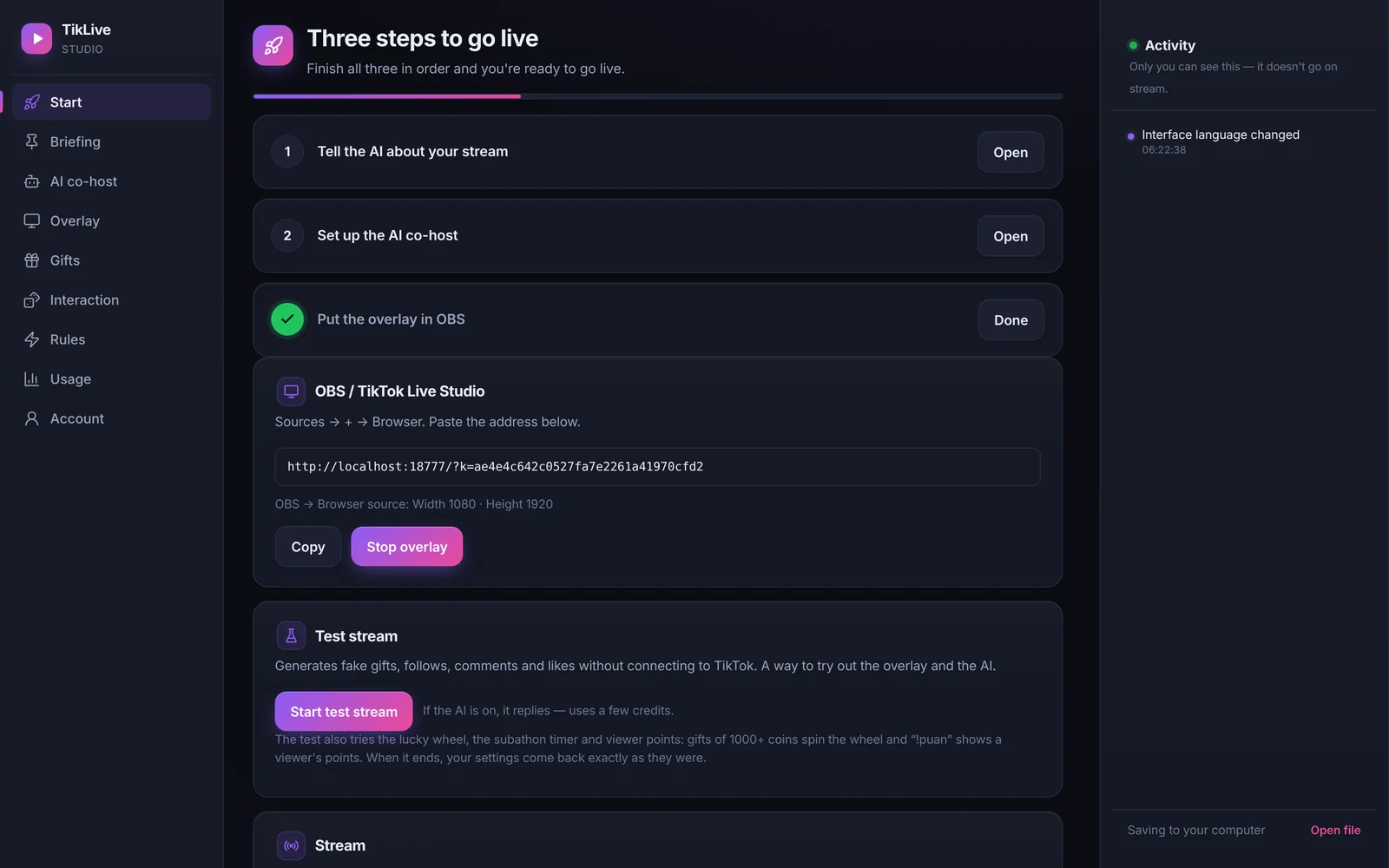
Way 1 — one-click for LIVE Studio (easiest). On the Start tab press “Set up for TikTok LIVE Studio”. TikTool installs a portrait OBS scene, starts the OBS virtual camera, and opens LIVE Studio. In LIVE Studio do this once: Add Source → Camera → OBS Virtual Camera → portrait mode → fit to screen. The game, overlay and (if you chose it) your camera arrive as one full-screen source. LIVE Studio remembers that source next time.
Way 2 — game connection, no virtual camera. Copy the game connection address from TikTool. In LIVE Studio: Add Source → Link, paste the address, set custom resolution to width 1080 and height 1920, then fit to screen. While you play in TikTool’s game window, the link shows the same picture. If that window is closed, the link runs the game by itself. When you switch games in TikTool, the same link updates.
Go LIVE
- In TikTool, Connect should already be on. Leave TikTool running.
- In LIVE Studio check that the source fills the portrait preview.
- Set your title and go LIVE from LIVE Studio, not from the phone.
- Tell viewers how to play in one sentence. Gifts and comments reach the game through TikTool as soon as the live is on. “Not live right now” in TikTool before that is normal.
If something fails on Mac
- macOS blocks TikTool.app: System Settings → Privacy & Security → Open Anyway, then open the app again.
- LIVE Studio cannot see OBS Virtual Camera: in TikTool press “Start the virtual camera for TikTok LIVE Studio”, then pick OBS Virtual Camera again in LIVE Studio.
- The capture is black: use the game connection (Way 2) instead of window capture. LIVE Studio’s window capture on Mac is less reliable than the link or the virtual camera.
- The game does not react: public TikTok profile, username without @, and the live must already be on.
- Gift-to-key presses in other Windows games are Windows-only. TikTool games on Mac do not need that: they read gifts directly.
Need OBS instead of LIVE Studio? Only some TikTok accounts get a stream key. Get a TikTok stream key for OBS