
How I Use an AI Character and an AI Co-Host on My TikTok LIVE
TikLiveGames Team · · 7 min read
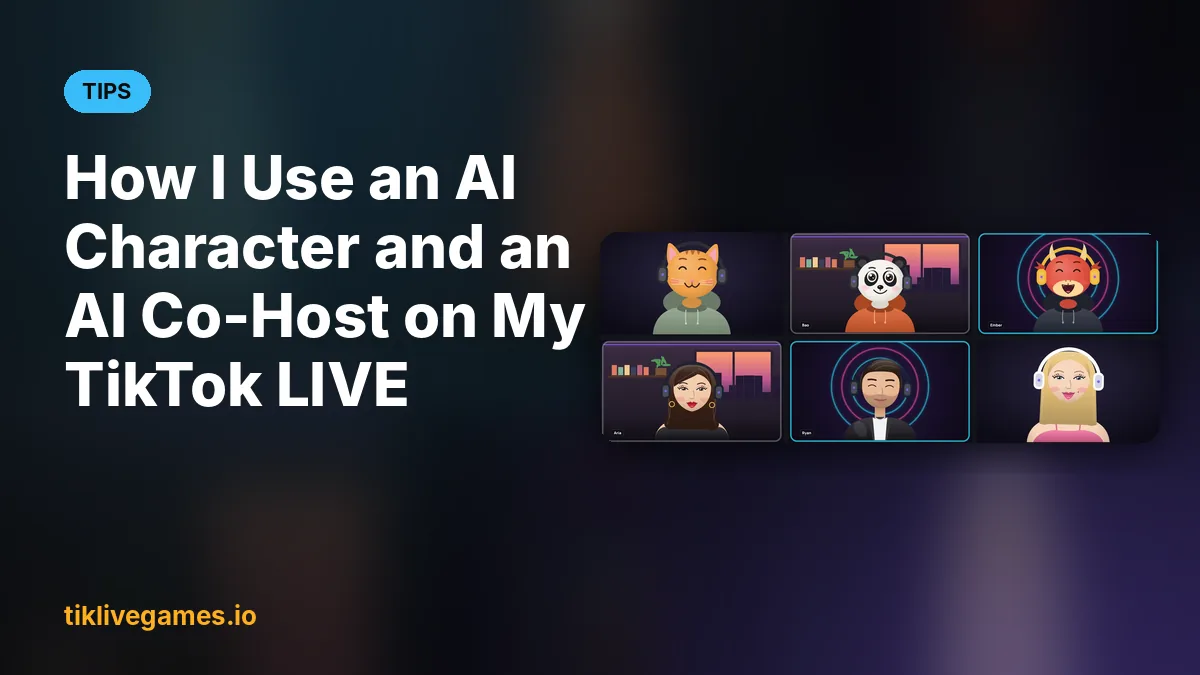
When I stream alone, the hardest part is keeping the room alive while I play: thanking every gift, greeting new viewers, answering the same questions again and again. So I gave my stream a second host. In TikTool I turned on the AI co-host and put an animated AI character on my overlay that talks with its voice. Here is exactly how I set it up and how I use it every stream.
Step 1: I picked a character for my overlay
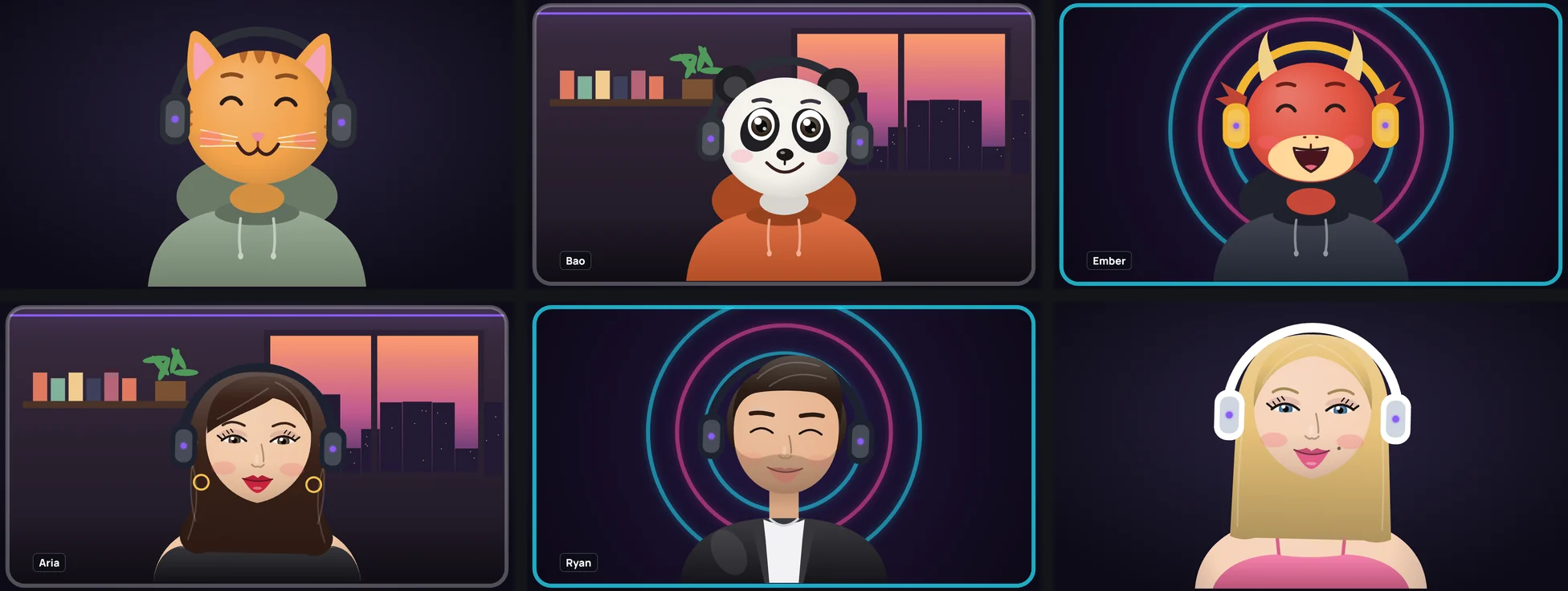
The AI character lives in the Overlay gallery (Overlay tab). It is a little face on my stream that talks whenever the AI talks: its mouth moves with the voice, it laughs, gasps or looks sad depending on what it says, and it cheers when a gift comes in. My viewers react to it much more than to a voice with no face.
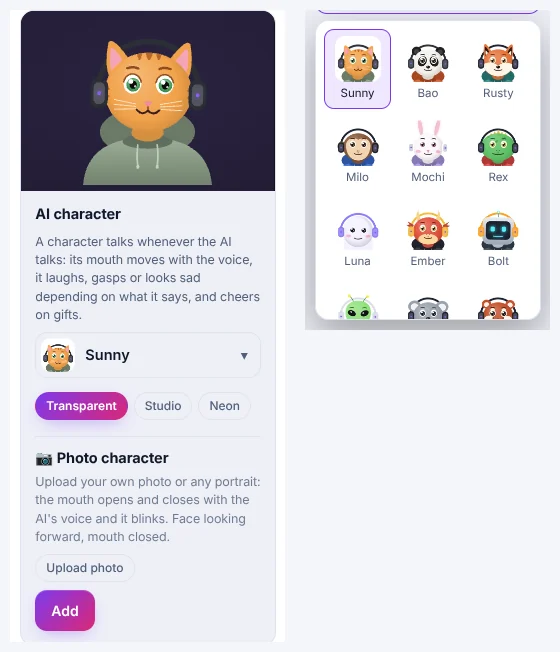
- There are 28 characters: animals and fantasy friends like Sunny the cat, Bao the panda, Rusty the fox, Ember the dragon or Bolt the robot, and human hosts like Aria, Ryan and Bella.
- Each one comes with three backgrounds: Transparent (just the character on my camera), Studio (a cozy room) or Neon (glowing rings).
- I press Add, and the character shows up on stream right away. In the stream preview I drag it to a corner and pull its corner to make it bigger.
- I change characters for different streams — a calm one for chatting, a loud dragon for game nights.
Step 2: sometimes I make my own photo talk
Under the characters there is Photo character. I upload a photo — of me, my mascot or any portrait — and click three points: my left eye, my right eye and the middle of my mouth. From then on the photo talks on stream: the mouth opens and closes with the AI's voice and the eyes blink. The best photos face the camera with the mouth closed.
Step 3: I told the AI what my stream is about
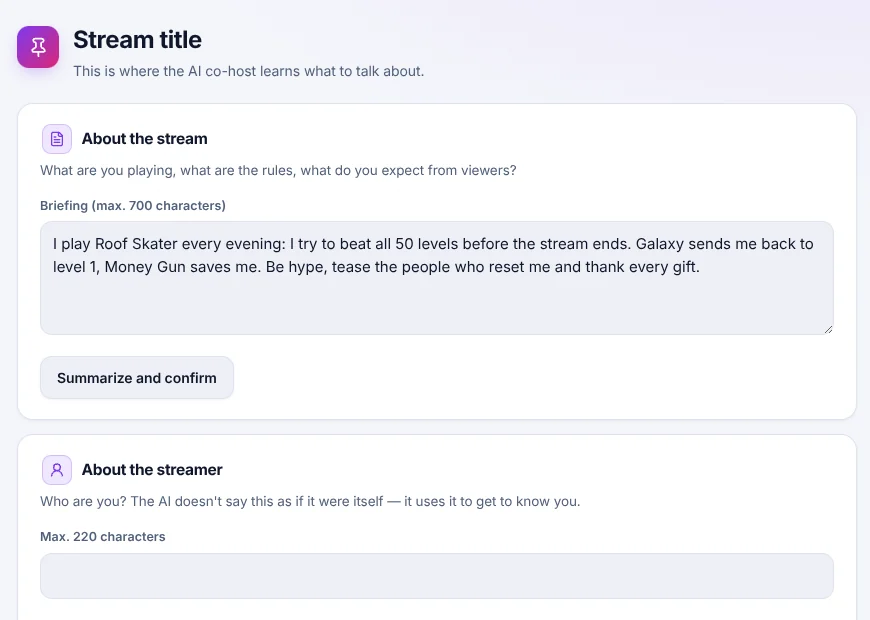
This is the step that made the AI sound like it really knows my stream. In the Briefing tab I write, in a few sentences, what I play, the rules and what I expect from viewers — up to 700 characters — and press Summarize and confirm. I also fill in About the streamer (who I am, so it knows me — it never pretends to be me) and the stream title and description.
The AI also learns while I stream. When I hold push-to-talk and say something like “from now on call me boss” or “Ayşe is my cousin”, it saves it under Things you taught the AI. I can forget any of them or add rules by hand, for example “no swearing on stream, remind everyone”.
Step 4: I set how it talks
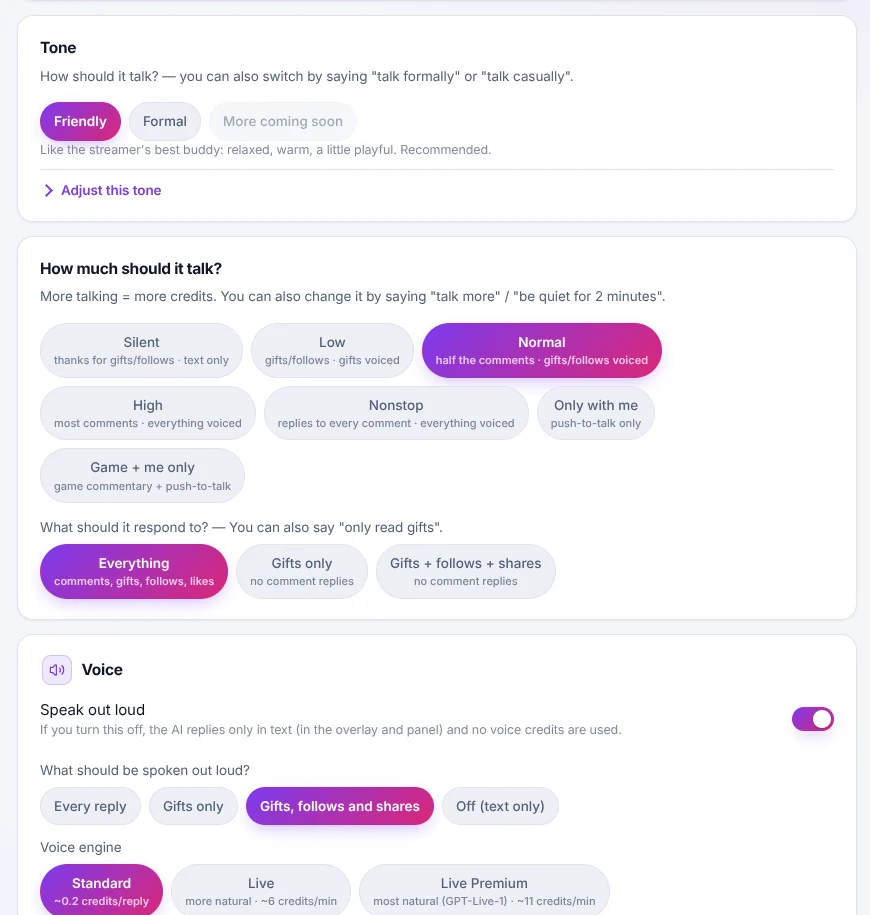
- Tone: I use Friendly — relaxed, warm, a little playful. Formal sounds like a news anchor.
- How much it talks: Silent, Low, Normal, High or Nonstop, plus Only with me (it only answers my push-to-talk) and Game + me only. I start on Normal and go to Low when the chat is very busy.
- What it responds to: everything, gifts only, or gifts + follows + shares.
- Voice: it can speak every reply out loud, or only gifts, or gifts, follows and shares — or answer only in text. There are three voice engines: Standard, Live (more natural) and Live Premium (the most natural).
Every setting works instantly, even mid-stream, and I can also change them by voice: I hold push-to-talk and say “talk more”, “be quiet for 2 minutes”, “only read gifts” or “talk formally”.
Step 5: I let it follow my game
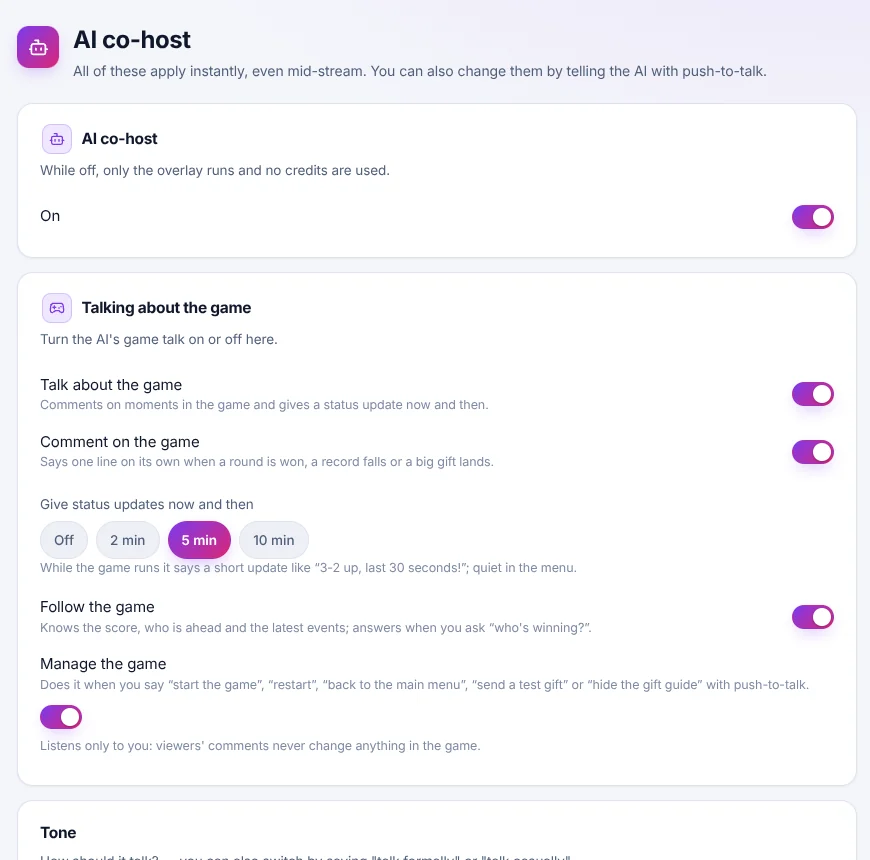
- Comment on the game — it says one line on its own when a round is won, a record falls or a big gift lands.
- Status updates every 2, 5 or 10 minutes — “3-2 up, last 30 seconds!” while the game runs, quiet in the menu.
- Follow the game — it knows the score and who is ahead, so when a viewer asks “who's winning?” it answers.
- Manage the game — I say “start the game”, “restart”, “back to the main menu”, “send a test gift” or “hide the gift guide” with push-to-talk and it does it. It listens only to me: viewers' comments never change anything in the game.
How a stream with my AI co-host feels
- Someone joins: the character greets them by name.
- A gift lands: the character cheers and thanks the viewer by name for the real gift.
- A viewer asks a question in the chat: the AI answers it while I keep playing.
- I need a break: I hold push-to-talk and ask it to tell a joke or explain the rules of the game.
- A big moment in the game: it reacts with one short line, and the character laughs or gasps with it.
My tips
- Write the briefing before your first stream — it makes the biggest difference.
- Pick a character that matches your vibe and keep it, so your regulars recognise it.
- Start with a medium talk level and lower it on busy nights.
- Put the character in a corner where TikTok's comments and buttons do not cover it; the stream preview shows those areas.
- Use push-to-talk a lot: it is the fastest way to steer the AI live.
The AI co-host and the AI character are included in the TikTool Pro, Premium and Ultra plans.
Give your TikTok LIVE a co-host with a face. Get TikTool